Difference between revisions of "OpenVPN ChromeBook"
| Line 156: | Line 156: | ||
</div> | </div> | ||
</div> | </div> | ||
| − | |||
| − | |||
| − | |||
| − | |||
| − | |||
| − | |||
| − | |||
| − | |||
| − | |||
| − | |||
| − | |||
| − | |||
| − | |||
| − | |||
| − | |||
| − | |||
| − | |||
| − | |||
| − | |||
| − | |||
| − | |||
| − | |||
| − | |||
| − | |||
| − | |||
| − | |||
| − | |||
| − | |||
| − | |||
| − | |||
| − | |||
| − | |||
| − | |||
| − | |||
| − | |||
| − | |||
| − | |||
| − | |||
| − | |||
| − | |||
| − | |||
| − | |||
| − | |||
| − | |||
| − | |||
| − | |||
| − | |||
| − | |||
| − | |||
| − | |||
| − | |||
| − | |||
Revision as of 13:16, 29 October 2013
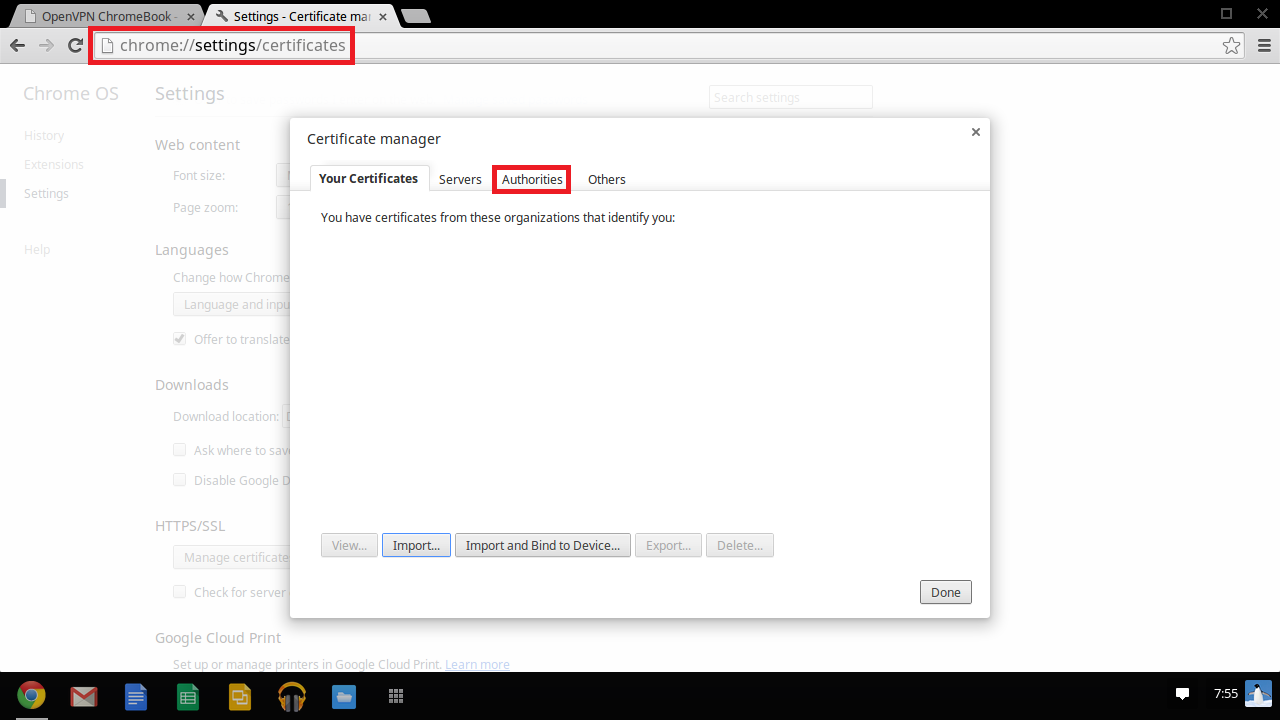
Setup Instructions
1. Download the BTGuard certificate.
2. Open Chrome and go to: chrome://settings/certificates then to the Authorities tab.
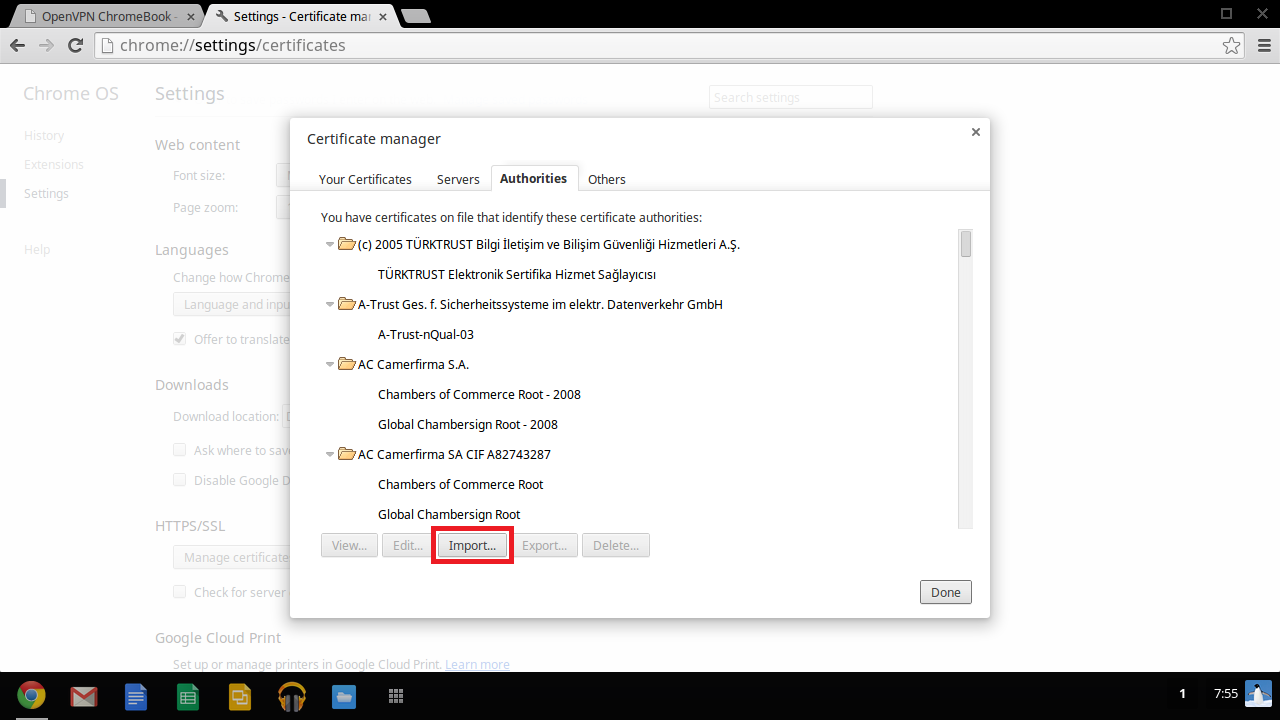
3. Click on Import...
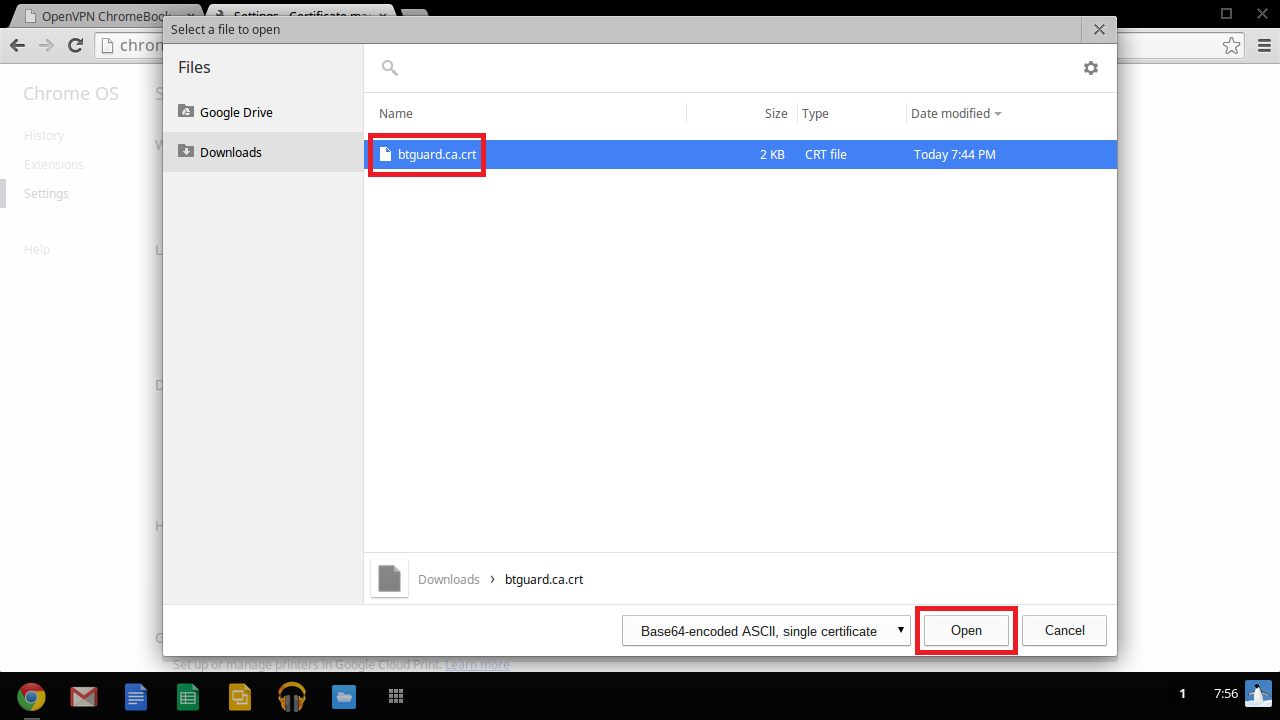
4. Locate and Select the btguard.ca.crt certificate file you just downloaded then hit Open.
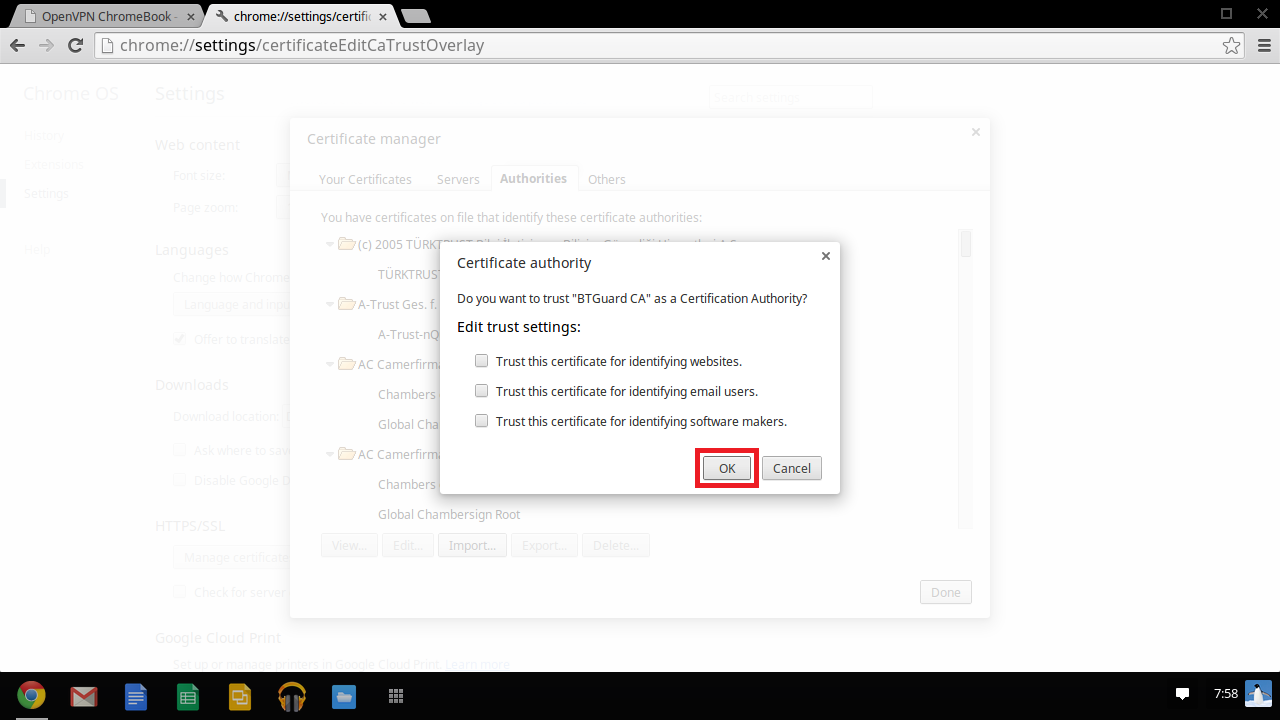
5. Hit OK.
6. Restart your computer now or the certificate you need to add later won't show up
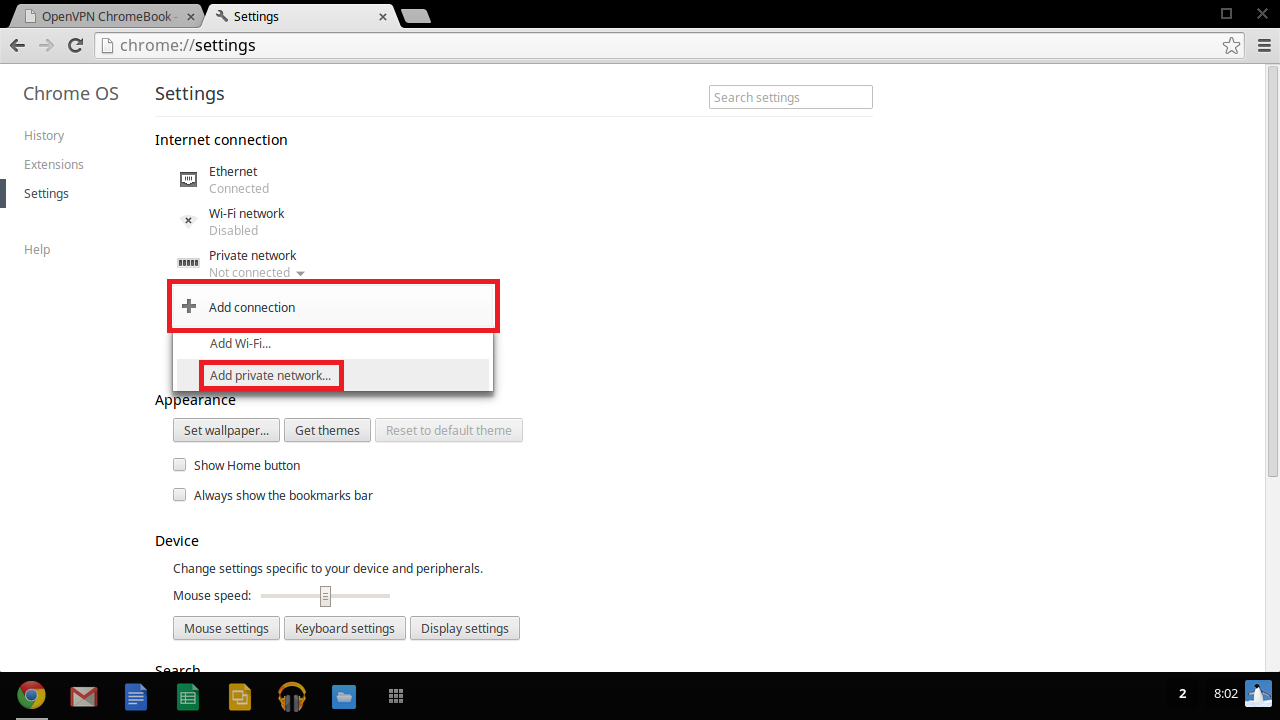
7. After restarting your computer, Open Chrome and go to: chrome://settings/.
8. Click on Add connection then on Add private network....
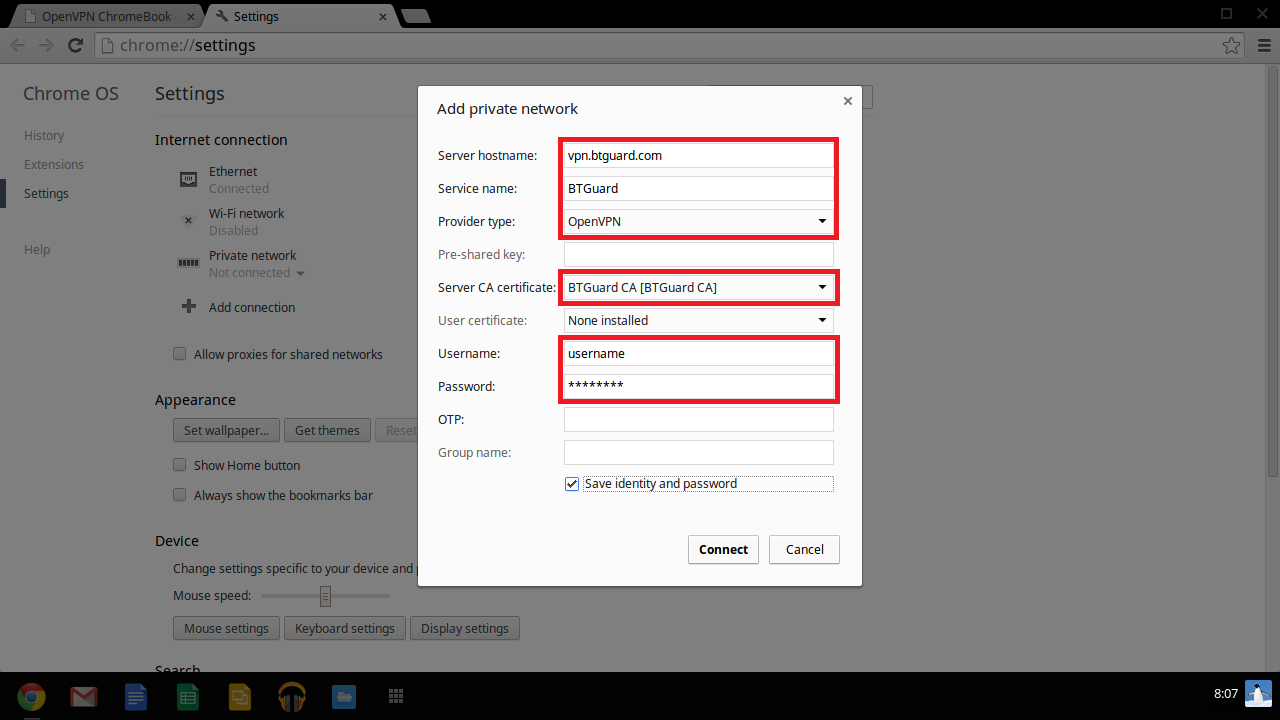
9. Fill in the following information:
Server hostname: vpn.btguard.com
Optional: To manually select your server location, please use ca.vpn.btguard.com for Canada or eu.vpn.btguard.com for Europe or sg.vpn.btguard.com for Singapore.
Service name: BTGuard
Provider type: OpenVPN
Server CA certificate: BTGuard CA [BTGuard CA]
Enter your username & password then click Connect
Both username and password are case sensitive. Make sure not to add/forget Capital Letters.
Setup Complete!
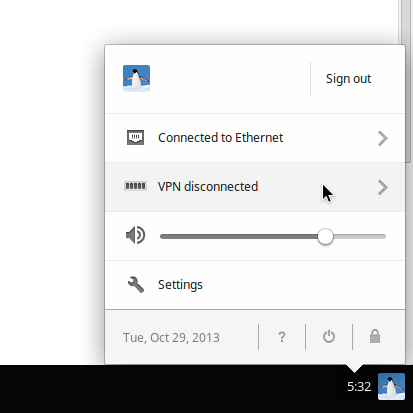
How To Connect
1. Click on your user image in the bottom right corner then on VPN.
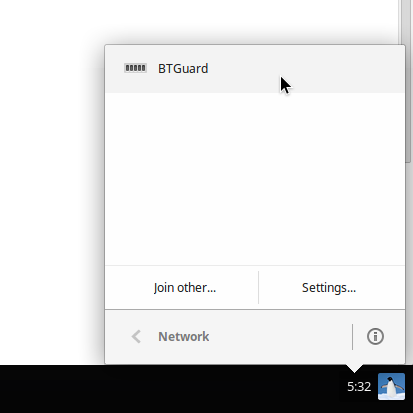
2. Select BTGuard.
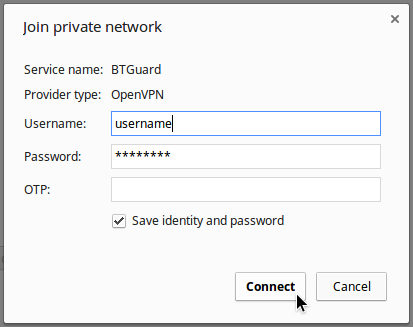
3. Click on Connect.
You are now connected!
